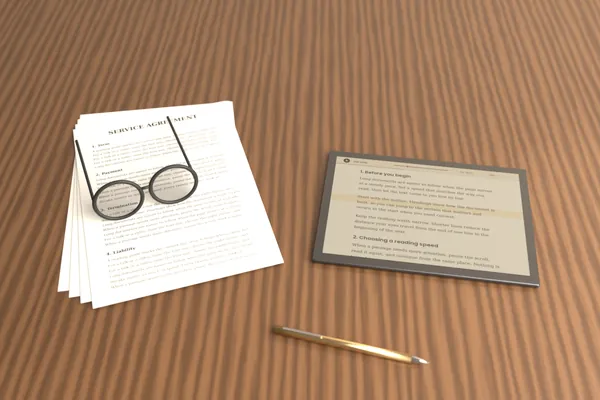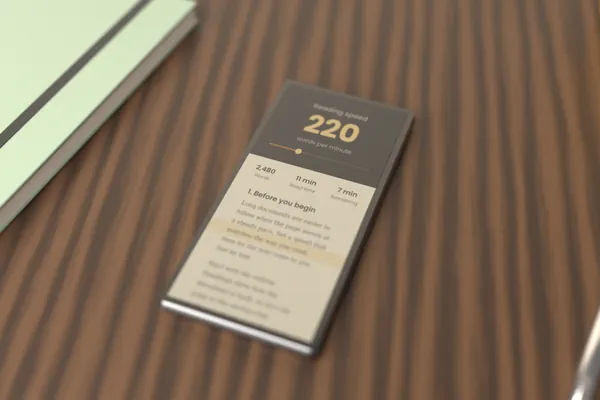
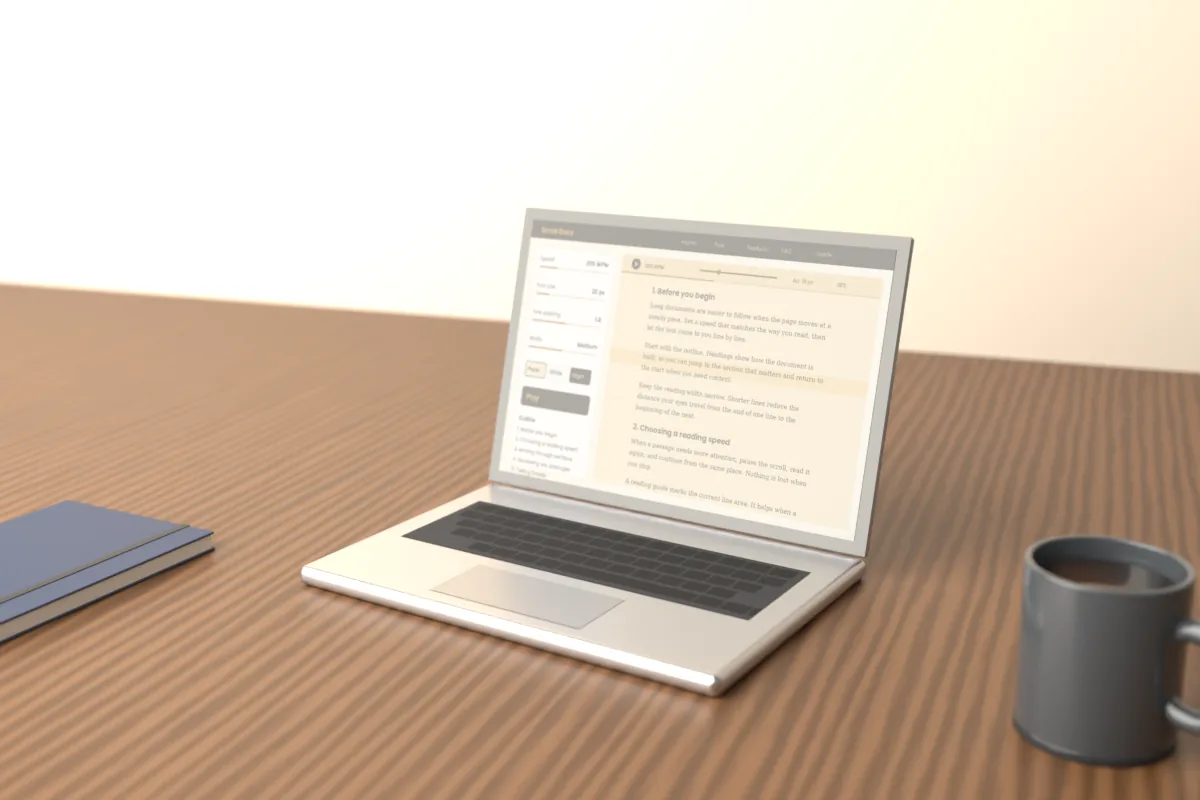
A scrolling document reader moves text up the screen at a steady pace, so you can read without touching the mouse or trackpad. Instead of reading a page, scrolling and hunting for your line again, you set a speed and let the text come to you.
This guide explains how Scroll Docs works, who tends to use it, what it can and cannot do, and how to run a first reading session from start to finish.
Scroll Docs: What a scrolling reader is
A scrolling reader is a display mode, not a document format. It takes text you already have and presents it in a clean column that moves upward on its own. The aim is a steady, predictable flow, so your attention stays on the words rather than on the scroll bar.
Scroll Docs is free and runs in the browser on phones, tablets, laptops and desktops. There is no account or sign-up. You can paste text into a text box or open a local file in one of these formats:
- Plain text (.txt) and log files (.log)
- Markdown (.md, .markdown)
- Web pages saved as .html or .htm, where only the readable text is kept
- Data files such as .csv and .json
Files can be up to 5 MB. Basic Markdown is formatted for you, including headings, bullet and numbered lists, bold and italic text, quotes and dividers.
Scroll Docs: How auto-scroll by WPM works
Speed is set in words per minute (WPM) rather than in pixels or scroll steps. That makes the setting meaningful: 200 WPM moves the text at a pace that delivers roughly 200 words each minute, whatever the screen size.
The range runs from 60 to 600 WPM, with 200 as the default. A few details make the motion easier to manage:
- Start delay. Choose none, 3 seconds or 5 seconds, so you have time to settle before the text moves.
- Live adjustment. Arrow Up and Arrow Down change the speed by 10 WPM while the text is moving.
- Manual override. You can still scroll with a wheel, touch or trackpad. Auto-scroll continues from wherever you move the reader.
- Stats. Word count, character count, estimated reading time, time remaining and percent read update as you go, with a progress bar.
Scroll Docs: Who uses a scrolling reader
People reach for a scrolling reader when they want a steady pace or a hands-free view. Common cases include:
- Students working through long notes or reading lists
- Professionals reviewing reports, logs or meeting notes
- Speakers and video presenters reading a script, sometimes on teleprompter glass
- Readers who find dense pages tiring and prefer larger text, wider spacing or a dark theme
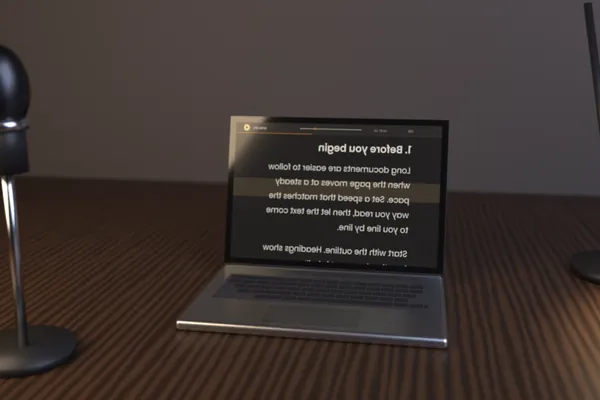
Mirror mode flips the text horizontally. That is needed for beam-splitter teleprompter setups, where the glass reflects the screen and would otherwise show the words backwards.
Scroll Docs: What it does and does not do
Scroll Docs is a reader, not an editor or converter. It is designed for reading text that is already written, with controls for comfort and navigation.
What it does
- Auto-scrolls at a set WPM, with play and pause
- Adjusts font size (14–40 px), line spacing (1.4–2.2) and reading width (Narrow, Medium, Wide)
- Offers Paper, White and Night themes, plus an optional reading guide band
- Lists headings in an outline and jumps to the one you select
- Finds words or phrases, counts matches and steps through them
What it does not do
- It does not edit, export or save documents
- It does not open PDF or DOCX files
- It has no cloud sync and no AI features
Privacy follows from that design. Your text is never uploaded or sent to a server; it stays in the open tab and is gone when you close the tab or use Clear. Only reader settings such as speed, font and theme are kept in the browser's local storage.
Scroll Docs: Walkthrough: your first session
A short first session helps you learn the controls before you rely on them for something long.
- Load the text. Paste a few paragraphs or open a .txt or .md file. If you can, pick something with headings so the outline has entries.
- Set up the view. Choose a theme, then adjust font size and reading width until a line is comfortable to take in without moving your head.
- Turn on the reading guide. The highlighted band marks where your eyes should rest as the text passes through it.
- Pick a start delay. Three seconds is enough for most people to move their hands away from the keyboard.
- Press Space to start. Read for a minute, then use Arrow Up or Arrow Down until you are neither chasing the text nor waiting for it.
- Try the navigation. Pause with Space, open the outline to jump to a heading, then press Home to return to the start.
Press F to enter fullscreen and Esc to leave it. Fullscreen removes surrounding distractions, which makes longer sessions easier to sustain.
The next time you open the reader, your speed and display settings will already be in place, because Scroll Docs remembers them locally. Your document will not be, so keep the original file somewhere you can open it again.