
Scroll Docs: explore documentation, technology and developer resources
Scroll Docs brings together resources for understanding the Scroll ecosystem, its zkEVM architecture, developer workflows and documentation tools. Explore protocol concepts, integrations, content management practices and practical guides in one place.
- No sign-up
- Text stays on your device
- Phone, tablet and desktop
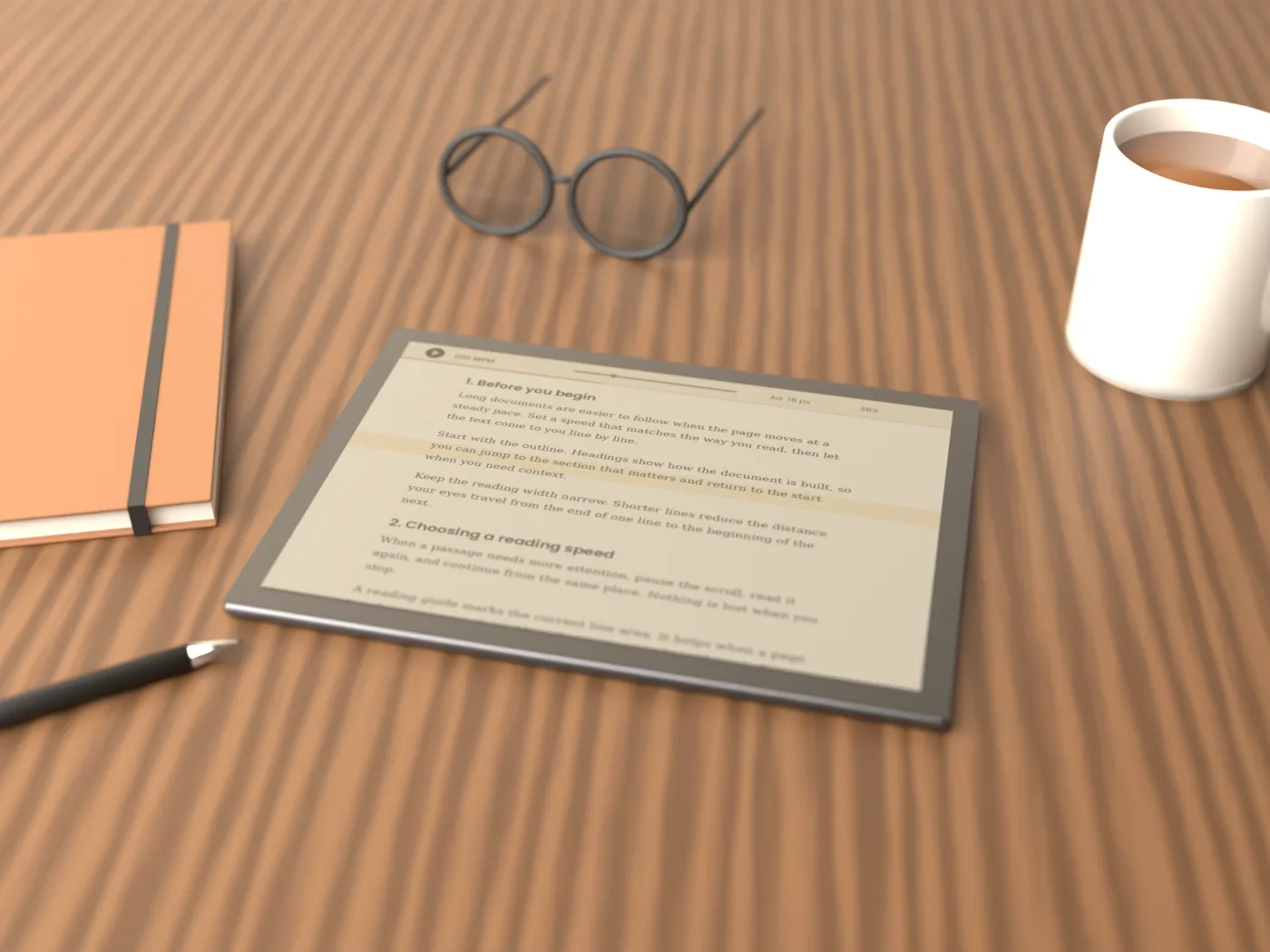
Explore Scroll Docs resources
Use this reader to review technical notes, documentation excerpts or your own study material while exploring Scroll Docs concepts. Text entered here remains in your browser.
Opens .txt, .md, .html, .csv, .json and .log files up to 5 MB. The text stays in this tab and is never uploaded.
Settings are remembered in this browser only.
Scroll Docs features and resources
Explore core concepts, developer resources, documentation workflows and ways to organize technical knowledge.
Speed in words per minute
Choose 60–600 WPM to set a steady reading pace.
Highlighted reading guide
A highlighted band helps your eyes follow each line.
Font, spacing and width
Adjust font size, line spacing and column width for comfortable reading.
Paper, White and Night themes
Choose Paper, White or Night to match your setting.
Outline from your headings
Use # headings to create an outline and jump between sections.
Find with match count
Find words or phrases and move through each match.
Mirror mode and start delay
Mirror text for teleprompter glass and add a short start delay.
Reading time and progress
Track word count, reading time and progress as you go.
Getting started with Scroll Docs in five steps
Begin with the project overview, learn the architecture, review developer resources and follow relevant guides.
- 01
Add your text
Paste text or open a supported file. Basic Markdown is formatted automatically.
- 02
Set the speed
Start around 180–220 WPM, then adjust to your pace.
- 03
Adjust the page
Adjust the font, spacing, width and theme.
- 04
Press Play
Press Play and follow the highlighted reading line.
- 05
Steer as you read
Pause with Space, adjust speed with the arrow keys or scroll manually.
Getting clean text into the reader
Text copied from PDFs and web pages often has line breaks in the middle of sentences. The reader joins lines inside a paragraph, so only a blank line starts a new one. Put # before a line to make it a heading and - before a line to make a list item. Headings also build the outline in the Navigate tab, which makes long documents quicker to move around.
Where Scroll Docs fits into your workflow
Use Scroll Docs resources to learn about the network, explore technical concepts and manage structured documentation.
Study and revision
Read lecture notes and summaries, then use Find to revisit key terms.
Reports and policies
Move through reports, handbooks and policies without losing your place.
Video scripts and talks
Use Night mode, larger text and a start delay for scripts and speeches.
Long articles and fiction
Read saved articles and chapters in a clear, adjustable column.
Rehearsing presentations
Rehearse speaker notes at your planned pace and check the estimated run time.
Comfortable screen reading
Use larger type, wider spacing and steady scrolling for easier tracking.
Scroll Docs learning paths and starting points
Start low, read for two minutes, then adjust in 10 WPM steps until the pace feels right.
- 120–150WPM
Careful review
For contracts, figures and other text that needs careful attention.
- 130–160WPM
Reading aloud
A useful starting point for scripts, talks and narration.
- 150–220WPM
Study reading
For notes and textbooks you want to understand and remember.
- 250–350WPM
Light reading
For familiar topics and quick second reads.
A two-minute calibration
Set font size and width first, then fine-tune the speed.
- Open a page of text you have not read before and set 180 WPM.
- Read for two minutes. If the band runs ahead of you, lower the speed by 10 to 20 WPM. If you are waiting for new lines, raise it.
- Repeat once, then keep that number as your default. The reader remembers it for your next visit.
Navigate Scroll Docs without losing context
Shortcuts work while the reader or its controls have focus, and in fullscreen. On phones and tablets, use the Play button and speed slider, and swipe to move through the text by hand.
- SpacePlay or pause
- ↑Faster by 10 WPM
- ↓Slower by 10 WPM
- +Larger text
- −Smaller text
- FFullscreen on or off
- EscLeave fullscreen
- HomeBack to the start
Explore more Scroll Docs guides
Quick guides to the reader’s settings and practical uses.
-
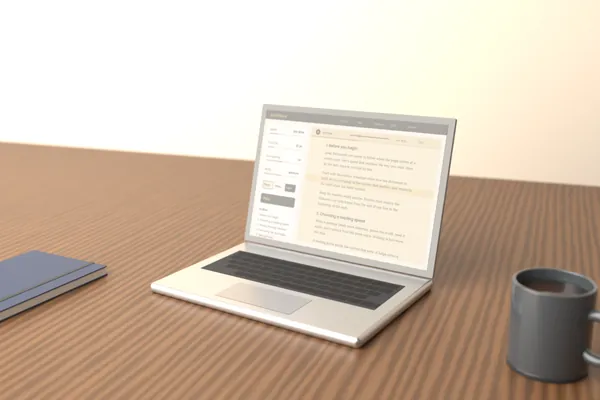
What Is Scroll Docs? How a Scrolling Document Reader Works
Learn how auto-scroll works, who it helps and how to get started.
Read article -
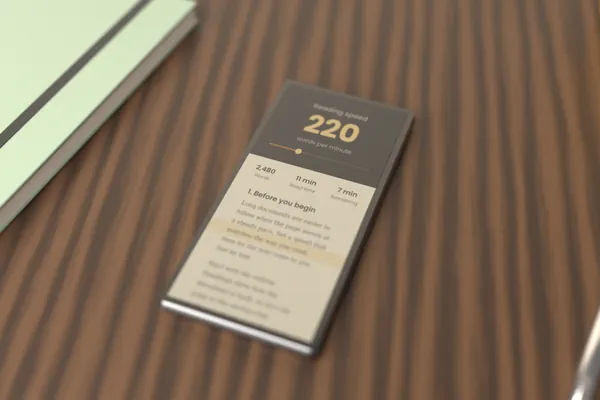
Choosing the Right Auto-Scroll Speed for Your Reading
Choose a speed for study, everyday reading or speaking, then adjust it with a short test.
Read article -
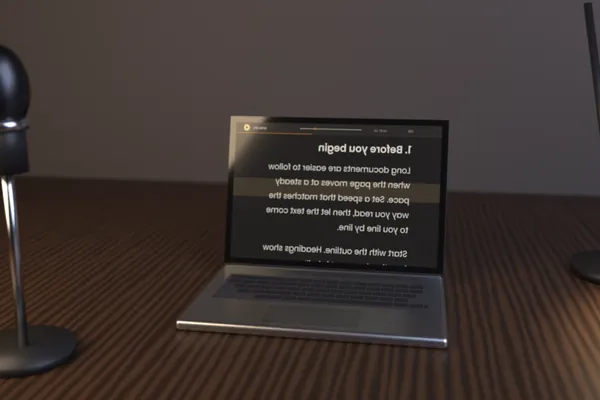
How to Use Scroll Docs as a Browser Teleprompter for Video
Prepare a script, set a speaking pace and use mirror mode for a browser teleprompter.
Read article
Scroll Docs privacy and documentation practices
Formatting, word counts and scrolling happen in your browser.
- No upload
Your text stays in the browser and is not uploaded to a server.
- No account
No account is needed, and no document history is created.
- Only settings are remembered
Your reading settings are saved in this browser.
- Clear in one step
Select Clear or close the tab to remove the text.
Where your text goes
Your text moves from your clipboard or file into the reader, without uploading.
Read the full Privacy Policy for details on server logs and local storage.
Scroll Docs frequently asked questions
Quick answers about files, privacy, speed and supported devices.