How a document is prepared affects how it reads when it scrolls. Long unbroken blocks, stray line breaks, and inconsistent headings make it harder to keep your place, while a clean structure keeps the eyes moving at an even pace.
This guide explains how to shape text for Scroll Docs, which Markdown it formats, how to clean copied text, and what to expect from each supported file type.
Scroll Docs: Use headings to build the outline
Headings do two jobs. They break the text into sections you can recognize as it moves, and they fill the Outline panel, where selecting a heading jumps straight to it.
- # for the document title or a main division.
- ## for sections.
- ### for subsections within a section.
Keep heading text short and specific, such as "Pricing changes" rather than "Section 3". A clear outline makes it easy to return to a passage during a review or a recording.
Scroll Docs: Keep paragraphs short
Start each new paragraph after a blank line rather than a single line break. The empty line is what tells the reader where one paragraph ends and the next begins.
Two to four sentences per paragraph works well for scrolling. Short blocks create natural pauses and help you notice where one idea ends, especially at higher speeds.
Scroll Docs: Use lists for steps and items
Lists are easier to follow in motion than items packed into one long sentence. Two kinds are formatted:
- Bulleted lists, with each line starting with - or * followed by a space.
- Numbered lists, with lines starting 1., 2., 3. and so on.
Use numbers when order matters, such as instructions, and bullets for everything else.
Scroll Docs: The Markdown that is formatted
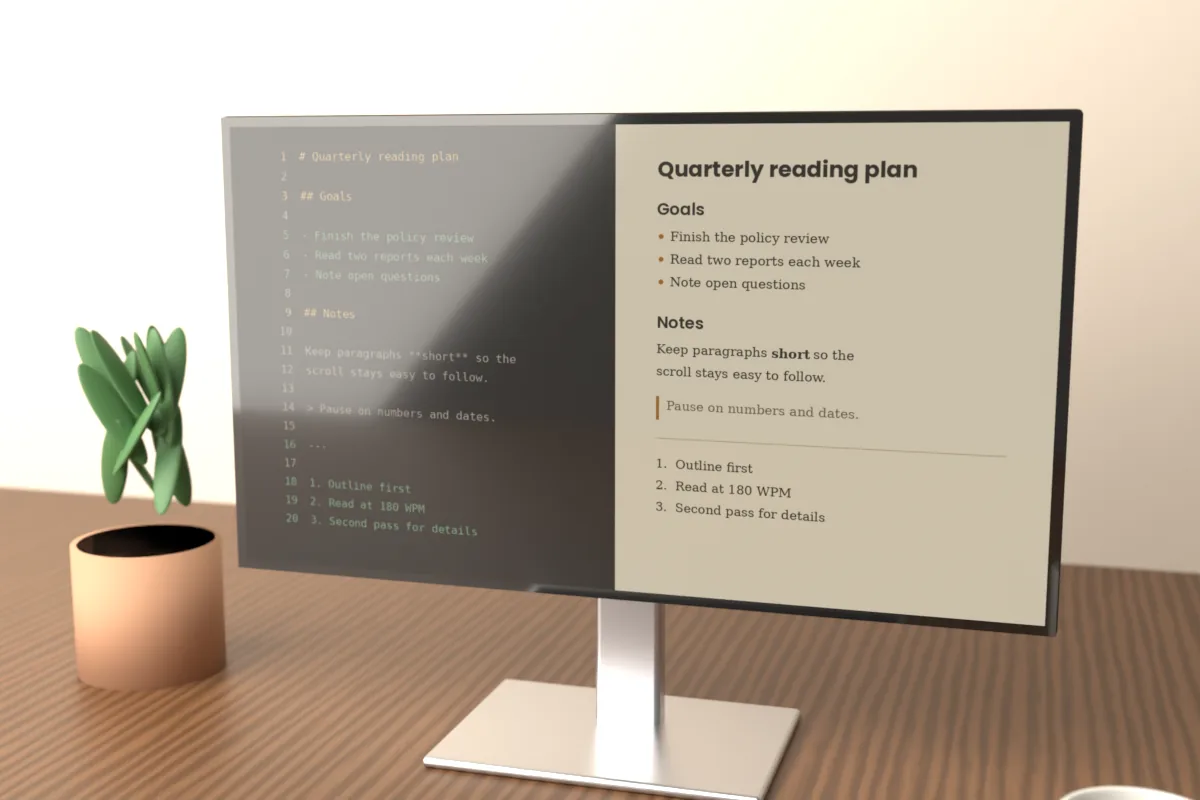
The reader handles a small, basic set of Markdown. Sticking to it gives predictable results:
- Headings: #, ## and ###
- Lists: - or * for bullets, 1. for numbered items
- Bold: **text**
- Italic: *text*
- Quotes: a line starting with >
- Divider: --- on its own line
Other Markdown features, such as tables, links, or images, are outside this set. If a source document relies on them, rewrite those parts as plain sentences or lists before reading.
Use bold for a few key terms and italics for light emphasis. When every other phrase is highlighted, nothing stands out.
Scroll Docs: Clean up copied text
Text copied from PDFs, emails, or web pages often carries formatting problems that interrupt a smooth read. A few minutes of cleanup in a plain text editor before pasting is time well spent.
- Hard line breaks: PDFs often break lines mid-sentence. Join those lines so each paragraph is continuous.
- Extra spaces: replace double spaces and stray tabs with single spaces.
- Extra blank lines: reduce runs of empty lines to one, so paragraph spacing stays even.
- Headers and footers: remove repeated page numbers, running titles, and footnote markers.
- Hyphenation: rejoin words split across lines, such as "docu- ment".
After loading the text, the Find tool helps spot leftovers. Search for a repeated running title or a page label, step through the matches, and correct the source if any remain.
Scroll Docs: Supported file types
Besides pasting, you can open a local file from your device. Scroll Docs accepts files up to 5 MB in these formats:
- Text and Markdown: .txt, .md, .markdown
- Web pages: .html, .htm
- Data and logs: .csv, .json, .log
PDF and Word documents are not supported. To read one, copy its text, paste it into the text box, and clean it up as described above.
What happens with HTML files
When you open an .html or .htm file, only the readable text is kept and the page code is left out. Menus, footers, and sidebars saved in the file are also text, so they may appear; trim them from the file first if you want only the article.
What happens with CSV and JSON files
CSV and JSON files open as text. Scroll Docs is a reader, not a converter, so it does not turn rows into a table or restructure data.
These formats work for scanning through values or entries. For flowing reading, convert the content into sentences or lists first.
Before a long session, look through the Outline once. Missing or oddly nested headings usually point to a formatting slip, such as a heading that lost its # marks during copying.
Scroll Docs: A quick preparation checklist
- Add headings for each main section.
- Split long paragraphs and separate them with blank lines.
- Turn sequences and item groups into lists.
- Remove broken line breaks, extra spaces, and page clutter.
- Check the Outline and run a short test scroll at your usual speed.
A well-prepared document scrolls evenly, and the time spent on structure pays back every time you read it.