Long documents are hard to read in one pass. Attention drifts, you lose your line after a scroll, and by page twenty it is easy to forget where a section began. Most of these problems come from how the text is presented and paced.
The techniques below work with any long text. Each one maps to a feature in Scroll Docs, so you can put it into practice in your next session.
Scroll Docs: Use a reading guide band
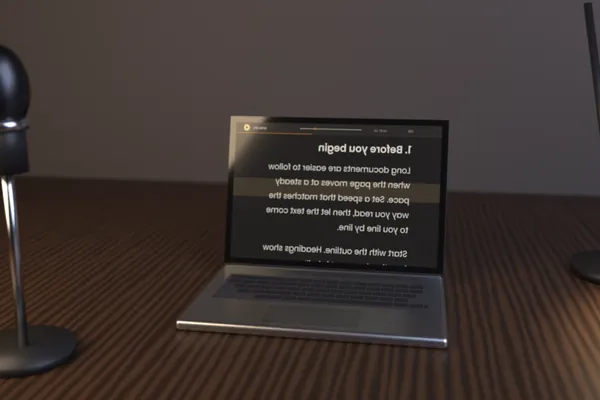
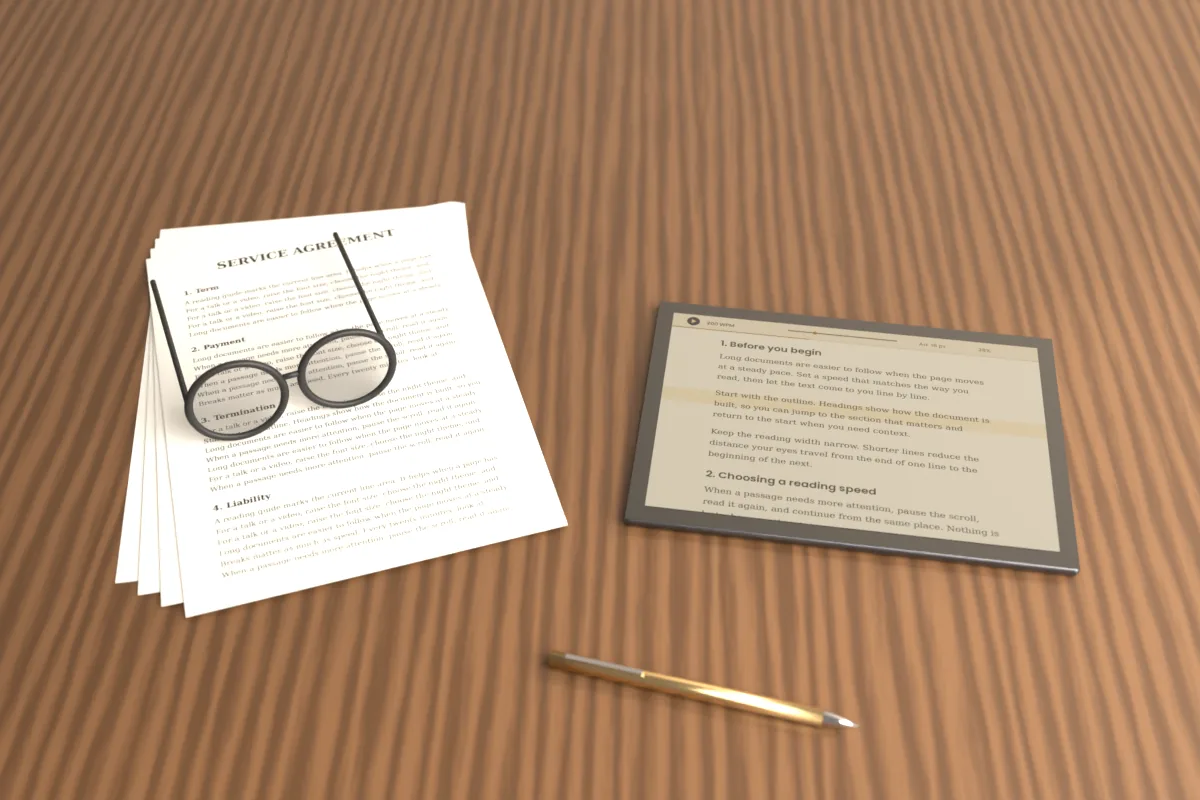
When text is moving, the eyes need an anchor. The reading guide is a highlighted horizontal band that marks the current line area, so you always know where to look.
Keep your gaze inside the band and let each line pass through it. If your eyes keep sliding toward the top of the screen, the speed is too slow. If they slip toward the bottom, it is too fast.
- Pair the band with a Narrow or Medium reading width so each line is short enough to take in at once.
- Raise line spacing toward 1.8–2.2 if lines start to blur together.
- Use the Night theme in low light so the band and text do not glare.
Scroll Docs: Navigate with the outline
A long report usually has a structure: chapters, sections and appendices. When the document uses Markdown headings, the outline lists them and lets you jump to any one.
Before you start reading, open the outline and skim it. Knowing the shape of the document tells you how long each section is and where natural stopping points fall. Later, it is the quickest way back to a section you want to revisit.
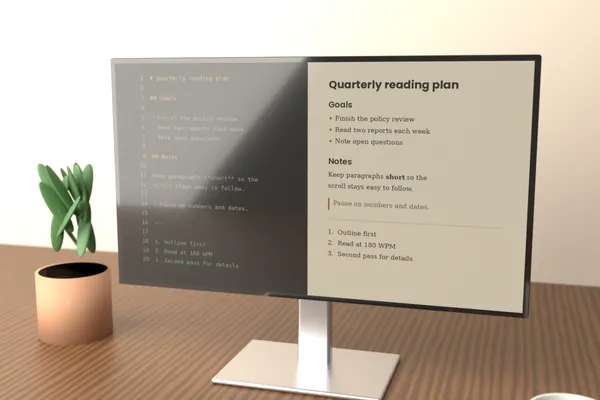
If your text has no headings, you can add them before loading it. A line starting with # or ## becomes a heading and appears in the outline.
Scroll Docs: Find specific passages
Sometimes you lose your place entirely, or you need to check a term defined earlier. Find searches for a word or phrase, shows the number of matches and highlights them.
- Search for a distinctive phrase from the last paragraph you remember, then step through matches with previous and next.
- Look up a defined term to confirm its meaning before continuing.
- Check how often a key name or figure appears to see which sections focus on it.
Scroll Docs: Keep a steady pace
Reading in bursts, fast through easy parts and stalled on hard ones, is tiring over a long document. A fixed auto-scroll speed in words per minute gives you a consistent rhythm instead.
Choose a speed slightly below what feels comfortable on an easy passage, so dense sections stay readable. As the material changes, nudge the speed by 10 WPM with Arrow Up or Arrow Down. Pause with Space when a passage needs real thought.
Scroll Docs: Take regular breaks
Steady reading still tires the eyes. A widely used guideline is the 20-20-20 rule: every 20 minutes, look at something about 20 feet away for 20 seconds.
Breaks are also a chance to check comprehension. Before resuming, try to state the main point of the section you finished in one sentence. If you cannot, that section is worth a second look.
Scroll Docs: Split a long report into sessions
A 15,000-word report read at 200 WPM takes about 75 minutes, before any pauses. That is more than most people can absorb well in one sitting.
The stats panel helps you plan. It shows the word count, the estimated reading time at your chosen WPM and the time remaining, so you can divide the work into realistic blocks.
- Open the outline and group sections into sessions of roughly 20–30 minutes each.
- Note the heading where each session should end.
- Start each session by jumping to its first heading from the outline.
- Stop at the planned heading, even if you feel you could keep going.
Scroll Docs does not save documents, and the text is cleared when the tab closes. For a report that spans several days, keep the original file and write down the heading where you stopped, so you can reopen it and jump straight back.
Scroll Docs: Re-read with purpose
Re-reading is most useful when it is targeted. Instead of starting from the top, use the outline or Find to go directly to the sections that matter.
- Lower the speed by 30–50 WPM for a careful second pass on difficult material.
- Raise it for a quick review of sections you already understood.
- Press Home to return to the start when you want a full final run-through.
- Use percent read and the progress bar to see how much of the review is left.
Over time, these habits make a long document feel less like one large obstacle and more like a series of manageable parts. Scroll Docs supplies the pacing and navigation; the planning and the breaks are up to you.