The speed setting decides whether auto-scroll feels comfortable or frustrating. Too slow, and you wait for every line. Too fast, and you start skipping words or rereading in a hurry.
There is no single correct number. The right speed depends on the material, your purpose and how the text is displayed. This guide covers rough starting ranges, a quick way to calibrate, and when to change speed mid-document in Scroll Docs.
Scroll Docs: How speed is measured
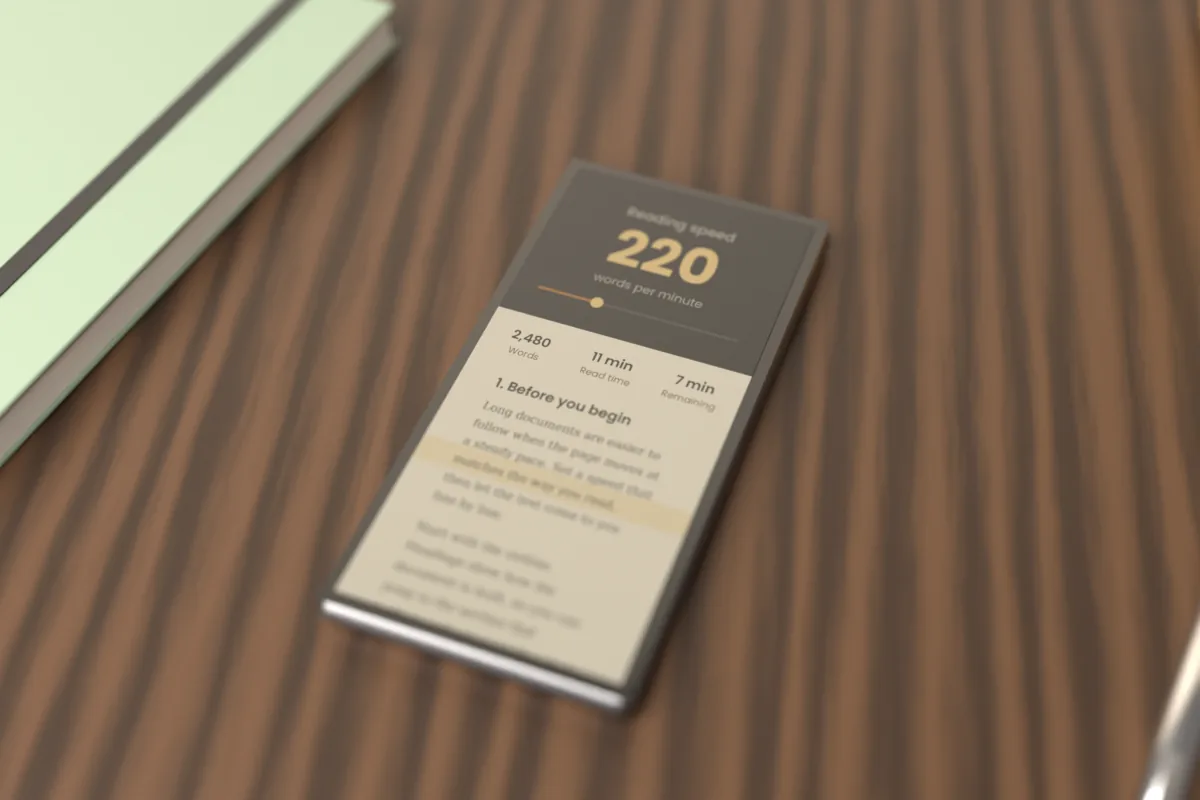
In Scroll Docs, speed is set in words per minute (WPM), from 60 to 600, with a default of 200. Because the unit is words rather than pixels, the setting describes the reading pace itself.
The stats panel uses the same number. When you change the WPM, the estimated reading time and time remaining update, which helps you judge whether a speed is realistic for the length of the document.
Scroll Docs: Typical ranges by purpose
The figures below are rough, commonly cited ranges, not precise targets. Treat them as a place to start and adjust from there.
Careful study: about 100–180 WPM
Technical material, contracts, textbooks and anything you need to remember belong at the lower end. Slower speeds leave time to process each sentence before the next one arrives.
Everyday reading: about 200–300 WPM
Articles, reports and familiar topics usually sit here. The default of 200 WPM is at the lower edge of this range, which makes it a sensible first setting for most readers.
Skimming and review: about 300–450 WPM
When you already know the material or only need the general outline, higher speeds can work. Expect to catch main points rather than every detail.
Reading aloud: about 130–160 WPM
Speaking is slower than silent reading, and speech is commonly placed at roughly 130–160 WPM. Scripts for presentations or video therefore usually need a lower setting than you would use for silent reading.
Scroll Docs: Calibrate with a 2-minute test
A short test tells you more than any table. Pick a passage that represents what you will actually read, not something easier.
- Load the text and turn on the reading guide band.
- Set the speed to 200 WPM and choose a 3-second start delay.
- Press Space and read for two minutes without touching the controls.
- Notice where your eyes settle. If they keep drifting above the band, you are waiting for the text. If they sink below it, the text is outrunning you.
- Pause and summarize what the passage said. If you can, the speed is workable.
Repeat the test once or twice at a new setting. Two or three short runs are usually enough to find a speed you can hold.
Scroll Docs: Adjust with the arrow keys
Arrow Up and Arrow Down change the speed by 10 WPM, even while the text is moving. Small steps matter: a 10 WPM change is easy to adapt to, while a jump of 100 WPM can break your rhythm.
- Make one adjustment, then read for at least 20–30 seconds before deciding on another.
- If you overshoot, step back down by one or two increments rather than starting over.
- Your last speed is remembered in the browser, so the next session starts where you left off.
Scroll Docs: How font size and width affect speed
Display settings change how a given WPM feels. With a larger font, fewer words fit on each line, so the text travels further up the screen to deliver the same number of words. The motion can look faster even though the WPM is unchanged.
Reading width works in a similar way. A Narrow width gives short lines the eyes take in quickly, while a Wide width means longer sweeps across the screen. Extra line spacing also adds distance between lines.
- If text seems to rush past after you enlarge it with +, lower the speed slightly or narrow the width.
- On a phone, a Narrow or Medium width with a moderate font size usually feels steadier.
- For teleprompter use, test the speed at the font size you will actually read from, since larger text is easier to see at a distance.
Scroll Docs: When to slow down
A comfortable speed for one section may be wrong for the next. Lower the WPM when you reach:
- Dense paragraphs with numbers, formulas or unfamiliar terms
- Instructions you will need to follow later
- Passages you plan to read aloud, especially ones with names or difficult words
- The end of a long session, when fatigue makes you miss details
If you find yourself pausing often to catch up, the speed is too high for the material. Drop it by 20–30 WPM so that pauses become the exception.
Choosing a speed in Scroll Docs is an ongoing adjustment rather than a one-time decision. Start near 200 WPM, test briefly, and change it as the text demands.