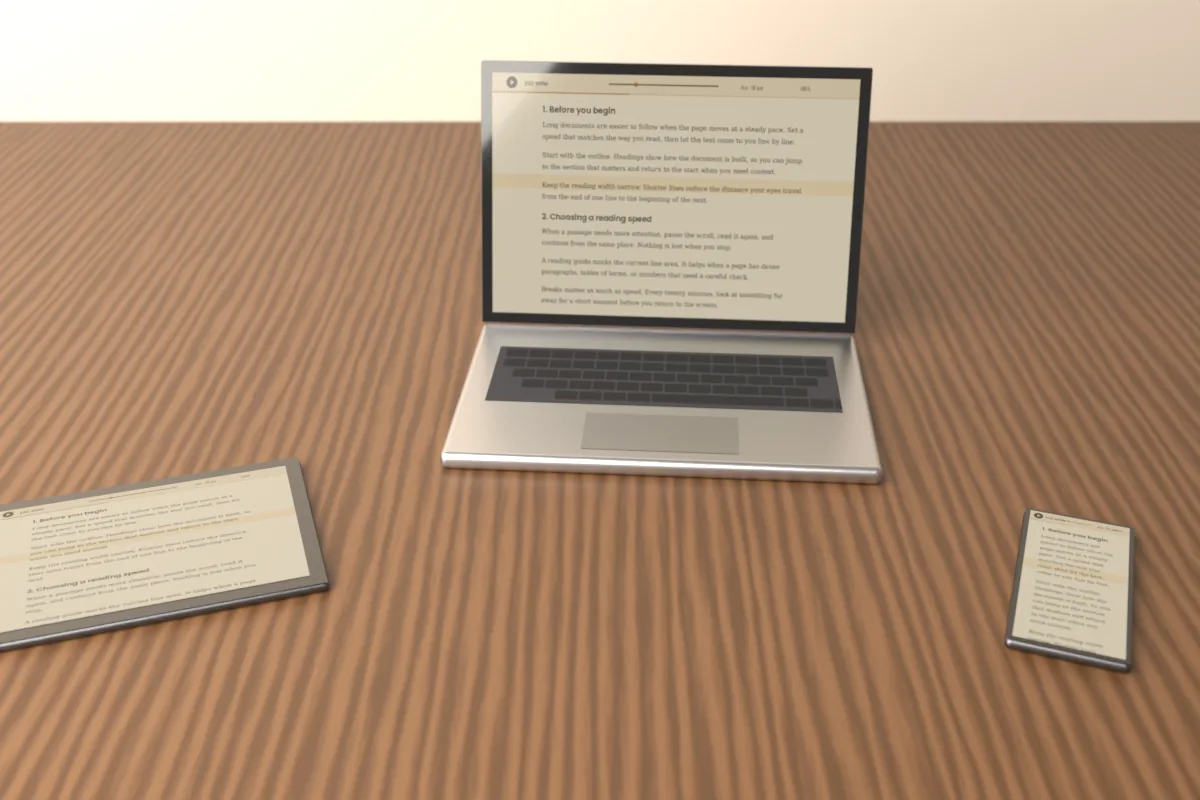
Scroll Docs runs in the browser on phones, tablets, laptops and desktops, so there is nothing to install. Each device still benefits from a slightly different setup, because screen size, input method and posture change how comfortable a long reading session feels.
This guide covers practical settings for each type of device, followed by notes on the major browsers and the fullscreen limits on iPhone and iPad.
Scroll Docs: Reading on a phone
A phone screen is narrow, so the goal is to keep text large enough to read at arm's length without making lines so short that the text jumps constantly.
Orientation and text size
Portrait orientation is usually the more practical choice on a phone, because it shows more lines at once and is easier to hold with one hand. Landscape can help with a very large font, but fewer lines fit on screen.
- Start with a font size around 18 to 22 px and adjust from there.
- Line spacing of 1.6 to 1.8 keeps lines apart on a small screen.
- The Narrow or Medium width makes little difference on most phones, since the screen already limits line length.
Keeping the screen awake
Many phones dim and lock the screen after a short period without a touch, which interrupts auto-scroll reading. The reader does not control this, so change it in your device settings before a long session.
On iPhone, the setting is usually under Display and Brightness, then Auto-Lock. On Android, look for Screen timeout in the Display settings. Remember to set it back afterward if battery life matters to you.
Touch scrolling
Swiping still works while auto-scroll is active. You can drag the text back to reread a sentence or forward to skip a section, and auto-scroll continues from wherever you leave it, so there is no need to pause first.
Scroll Docs: Reading on a tablet
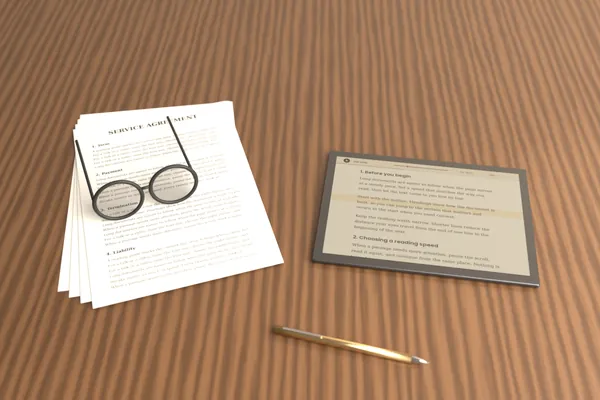
A tablet offers enough space for comfortable long-form reading, especially when it is not held in the hand the whole time.
- Use a stand or case: propping the tablet at eye level reduces neck strain and keeps the screen steady while text moves.
- Try landscape: on a stand, landscape orientation gives a wider view that suits reports and scripts.
- Choose the Wide width: in landscape, Wide uses the extra space; switch to Medium if lines feel too long to follow.
- Raise the font size: at stand distance, 22 to 28 px is often more comfortable than phone settings.
Tablet screen timeout settings work the same way as on phones, so check them before you start.
Scroll Docs: Reading on a laptop or desktop
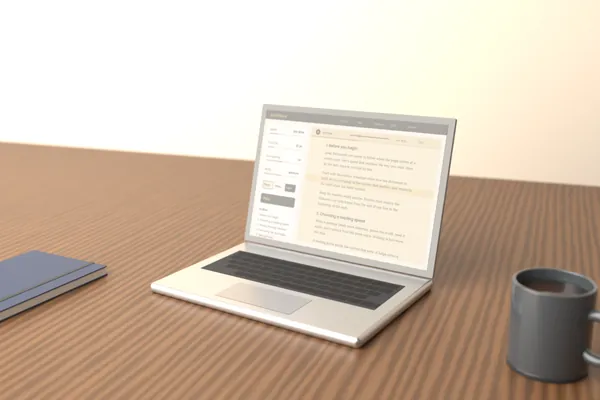
On a computer, the keyboard becomes the most practical way to control the reader. Keeping your hands on the keys lets you adjust without looking away from the text.
Keyboard shortcuts
- Space: play or pause.
- Arrow Up / Arrow Down: increase or decrease speed by 10 WPM.
- + / -: make the font larger or smaller.
- F: enter fullscreen.
- Esc: exit fullscreen.
- Home: return to the start of the document.
The mouse wheel and trackpad also move the text manually, and auto-scroll picks up from the new position.
Fullscreen and external monitors
Fullscreen hides browser toolbars and other windows, which removes distractions and gives the text the whole display. It is useful for presentations, recording sessions and focused reading.
On a large external monitor, very long lines become tiring to follow. Choose the Narrow or Medium width so the text stays in a comfortable column, and sit far enough back that you can see the whole reading area without turning your head.
If you use the reader as a teleprompter on a second screen, open the tab on that screen before entering fullscreen. Mirror mode is available for beam-splitter glass setups.
Scroll Docs: Browser notes
Scroll Docs works in current versions of Chrome, Safari, Edge and Firefox. Keeping your browser updated is the most reliable way to avoid display or fullscreen issues.
- Chrome and Edge: fullscreen and keyboard shortcuts behave the same on Windows, macOS and ChromeOS.
- Firefox: a short notice may appear when entering fullscreen; it fades after a moment.
- Safari on macOS: fullscreen works as expected; Esc exits it.
- Settings per browser: reader settings are stored in each browser's local storage, so a different browser or device starts with its own settings.
iPhone and iPad: Safari on iPhone may not allow true fullscreen for page elements, and support on iPad can vary by version. When fullscreen is not available, the reader still fills its panel, so you can rotate the device, raise the font size and read comfortably within the browser view.
Scroll Docs: A quick setup checklist
- Paste your text or open a local file.
- Set font size and width for the screen in front of you.
- Pick a theme that suits the room lighting: Paper, White or Night.
- Check that the screen will not lock during the session.
- Choose a start delay of 3 or 5 seconds if you need time to get into position.
Because Scroll Docs remembers settings per browser, a phone and a desktop can each keep their own setup, so you only need to adjust each device once.