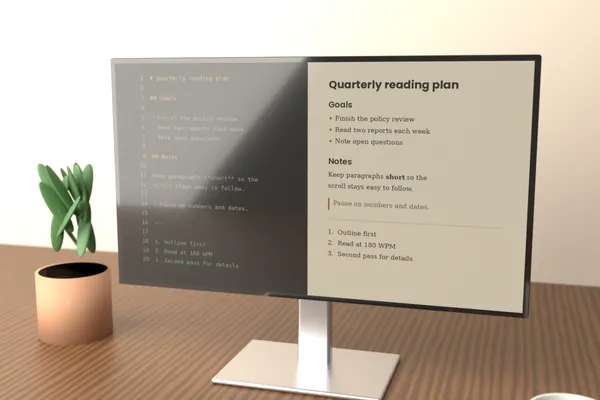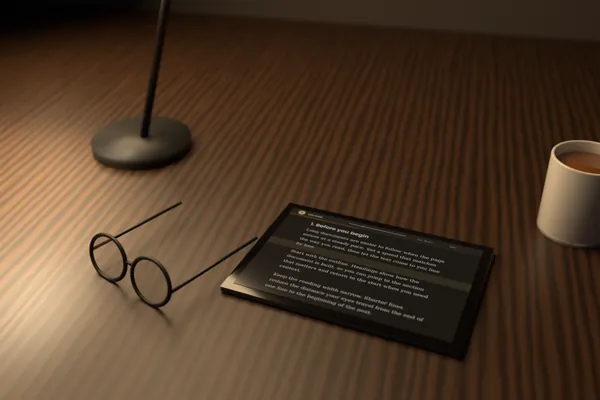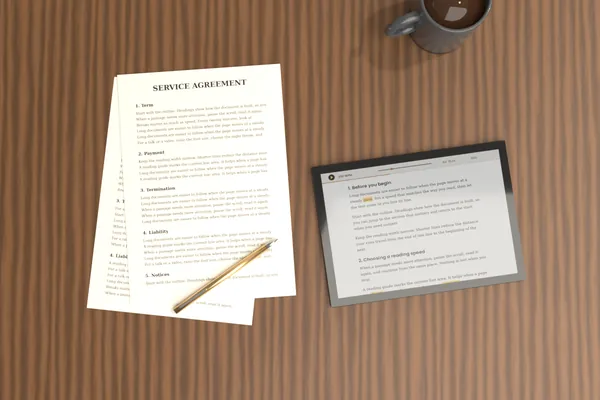
A teleprompter lets you keep eye contact with a camera or an audience while reading a prepared script. Scroll Docs can fill that role in a browser: the text moves at a steady words-per-minute pace, and you control it from the keyboard.
This guide covers preparing the script, choosing a speed, positioning the screen, and rehearsing so the recording sounds natural rather than read.
Scroll Docs: Prepare the script for reading aloud
Text written for the page often sounds stiff when spoken. Before loading it, read the script aloud once and rewrite any sentence that makes you stumble or run out of breath.
- Keep sentences short, with one idea each.
- Leave a blank line between paragraphs so each thought starts on a fresh line.
- Add ## headings for sections; they appear in the Outline, which lets you jump to a section during a retake.
- Mark words to stress with **bold**, but sparingly, since too much emphasis loses meaning.
- Spell out numbers and abbreviations the way you intend to say them.
Paste the finished script into the text box, or open it as a .txt or .md file from your device. The text stays in the browser tab and is never sent to a server, which matters when a script is unreleased or confidential.
Scroll Docs: Choose a speaking pace
Speech is slower than silent reading. A commonly cited range for comfortable spoken delivery is roughly 130 to 160 words per minute, though the right pace depends on your voice, the topic, and the audience.
The default speed of 200 WPM suits silent reading, so lower it before your first take. Practical starting points:
- Around 130 WPM for instructional or technical material.
- Around 150 WPM for a conversational video or presentation.
- Around 160 WPM for a short, energetic announcement.
The estimated reading time in the stats panel follows the chosen WPM. Use it to check whether the script fits a time limit before you start recording.
Scroll Docs: Use the start delay
Pressing play and then settling into position takes a moment. The start delay adds 3 or 5 seconds between pressing play and the first movement of text, so you can sit back, look at the lens, and begin on a clean breath.
Five seconds works well when you start playback with a mouse or trackpad and need to return your hands to a resting position. Three seconds is usually enough with a keyboard within reach.
Scroll Docs: Mirror mode for beam-splitter glass
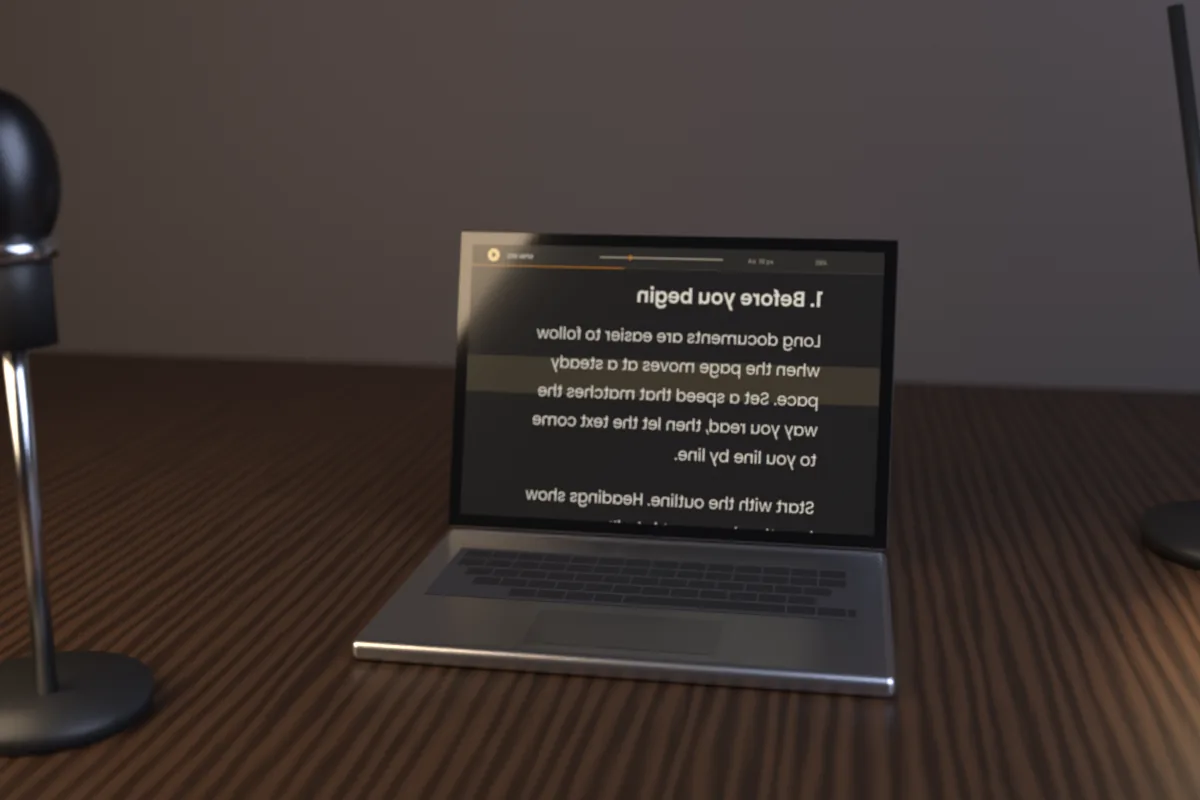
Hardware teleprompters place angled glass in front of the camera lens. The screen lies below the glass and you read its reflection, which appears reversed. Mirror mode in Scroll Docs flips the text horizontally so the reflection reads correctly.
Turn mirror mode on only when you use such glass. If you read directly from a screen beside the camera, leave it off.
Scroll Docs: Set up the display
Readability at a distance is the main concern. A few settings make a clear difference:
- Large font: move toward the upper end of the 14 to 40 px range, so you can read without leaning in.
- Night theme: light text on a dark background reduces glare and tends to show up better on teleprompter glass.
- Narrow width: shorter lines mean less side-to-side eye movement, which is less noticeable on camera.
- Reading guide: the highlighted band marks the current line area and gives you a consistent spot to read from.
- Fullscreen: press F to hide browser controls and other distractions.
Scroll Docs: Place the device near the camera lens
Viewers notice when your eyes drift away from the lens. Position the screen as close to the camera as possible, ideally directly below or beside the lens at roughly the same height.
A phone or tablet works well here because it can sit right next to a webcam or under a camera on a tripod. If the device sits below the lens, raise it as high as the frame allows so your gaze stays close to the lens line.
Scroll Docs: Control speed from the keyboard
You rarely know the right pace until you hear yourself. Adjust it while reading instead of stopping:
- Space pauses and resumes playback.
- Arrow Up / Arrow Down change the speed by 10 WPM.
- + / - change the font size.
- Home returns to the start for a retake.
When the screen sits near the camera and out of reach, a Bluetooth keyboard paired with the phone, tablet, or laptop sends the same key presses. Keep it in your lap or below the frame.
If you lose your place, pause with Space, scroll back a line or two by hand, and resume. Auto-scroll continues from the new position, so there is no need to start over.
Scroll Docs: Rehearse before recording
A run-through or two shows where the script and the speed do not match. Read the full script in Scroll Docs at your chosen pace and note where you rush or fall behind.
- Do one read at the planned speed without recording.
- Adjust the WPM in steps of 10 until the text stays just ahead of your voice.
- Rewrite any line you stumble on twice.
- Record a short test and check your eye line.
The aim is for the text to wait slightly ahead of you rather than pull you along. Speed, font size, and theme are remembered in your browser, so later sessions start from the same setup.